
Explore seven historical FBPlot radar palette exports using the same Kylian Mbappé profile, with practical guidance on brand fit, contrast and publishing context.
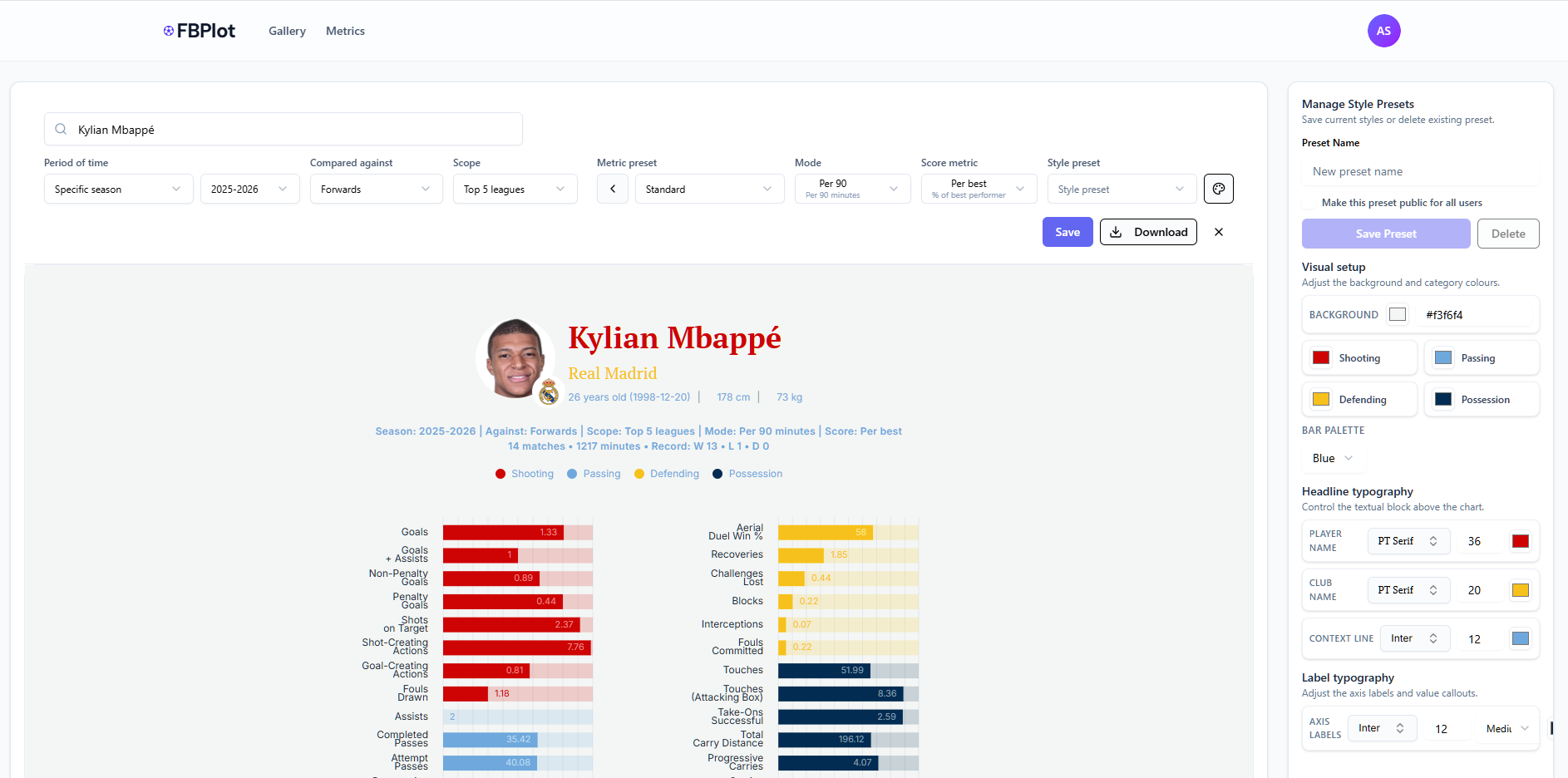
In scouting reports and press publications, visuals need to do more than show data: they must fit the story’s visual identity without weakening contrast or legibility. These November 2025 exports hold the player data constant so the visual effect of each historical preset can be compared directly. For current metric definitions, use the Metrics Glossary.
Historical palette note: The seven names and exports below document the FBPlot presets used for these captures in November 2025. The current preset library is account- and configuration-dependent, so check the editor before relying on a historical name in a new workflow.
Selecting and Customizing Palettes in FBPlot
A palette should support the purpose of the chart: quick recognition for branded content, restrained contrast for a report, or a neutral system for comparisons across teams. The examples below use the same Kylian Mbappé radar so the visual treatment changes while the player, period, comparison group and metrics remain fixed.
This article focuses on visual identity. For metric selection, peer groups and interpretation, use the main football radar chart guide.
Basic Palette – Bold Colors for High Impact
The Basic palette has bold colors, making it ideal whenever you want a chart with a fiery, attention-grabbing backdrop. In the example above, the entire radar is set against a rich golden-yellow canvas with bold white text, and the data segments alternate through warm tones (red and purple hues) that echo the energy of contrasted colors. This high-contrast design ensures metrics pop: even small values don’t get lost against the vivid background.
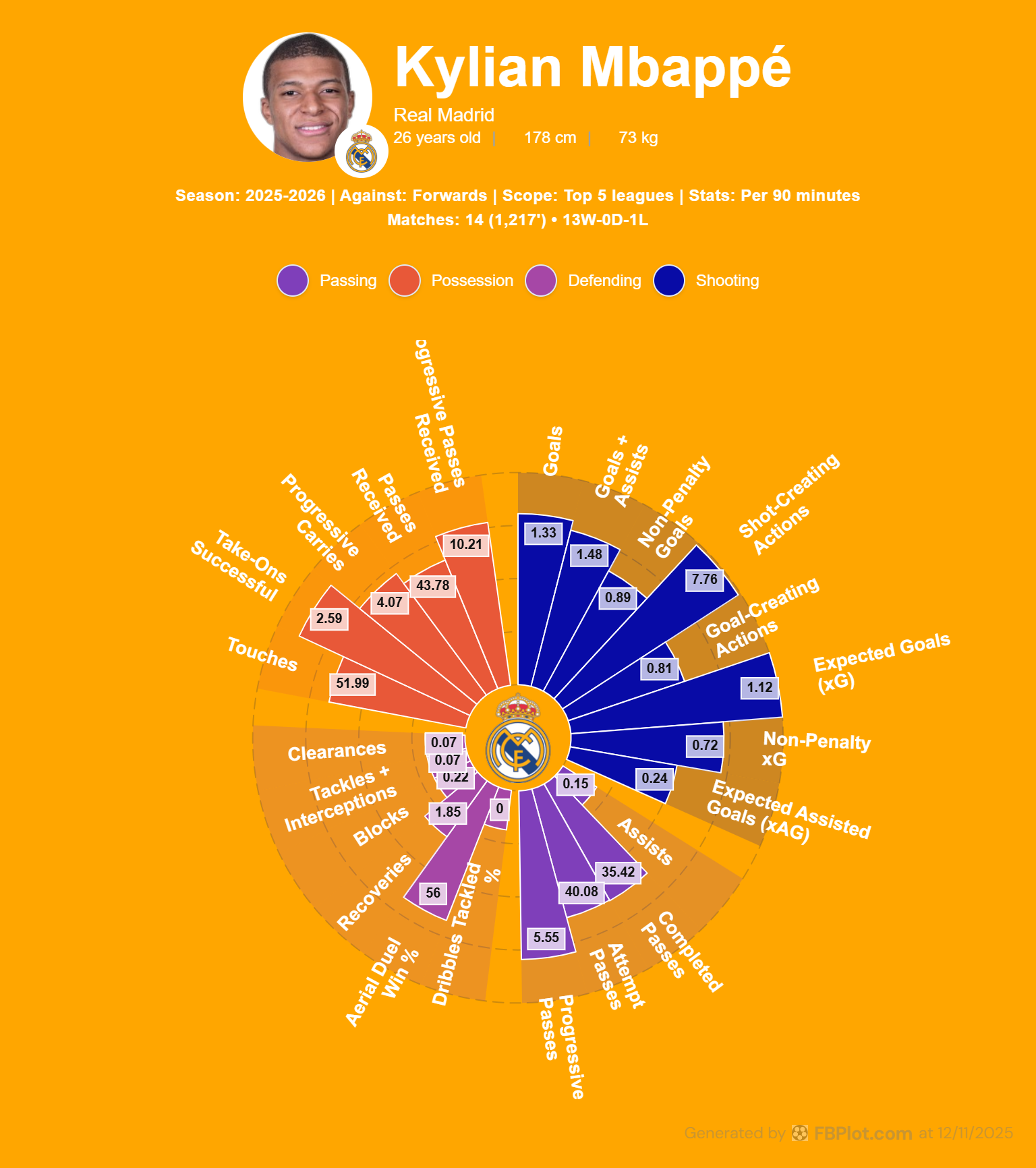
- When to use it: Use the Basic palette for scenarios that call for passion and high energy – for instance, a piece highlighting a player’s stats or a magazine spread where you want the graphic to immediately catch the reader’s eye.
- Pros: Extremely eye-catching and distinctive; the red/gold scheme can reinforce a Spanish team narrative.
- Cons: The intense background color can overpower a page if not used carefully – in print reports or articles with lots of text, you might find the bright background a bit distracting or hard to match with other elements.
In such cases, consider using Basic’s palette for social media graphics or sidebars, while opting for a calmer style (like Pastel) in the main report. Overall, Basic’s palette is all about making a statement – great for bold visual statements and team-centric storytelling.
Fantasy Football Palette – Vivid and Playful for Modern Media
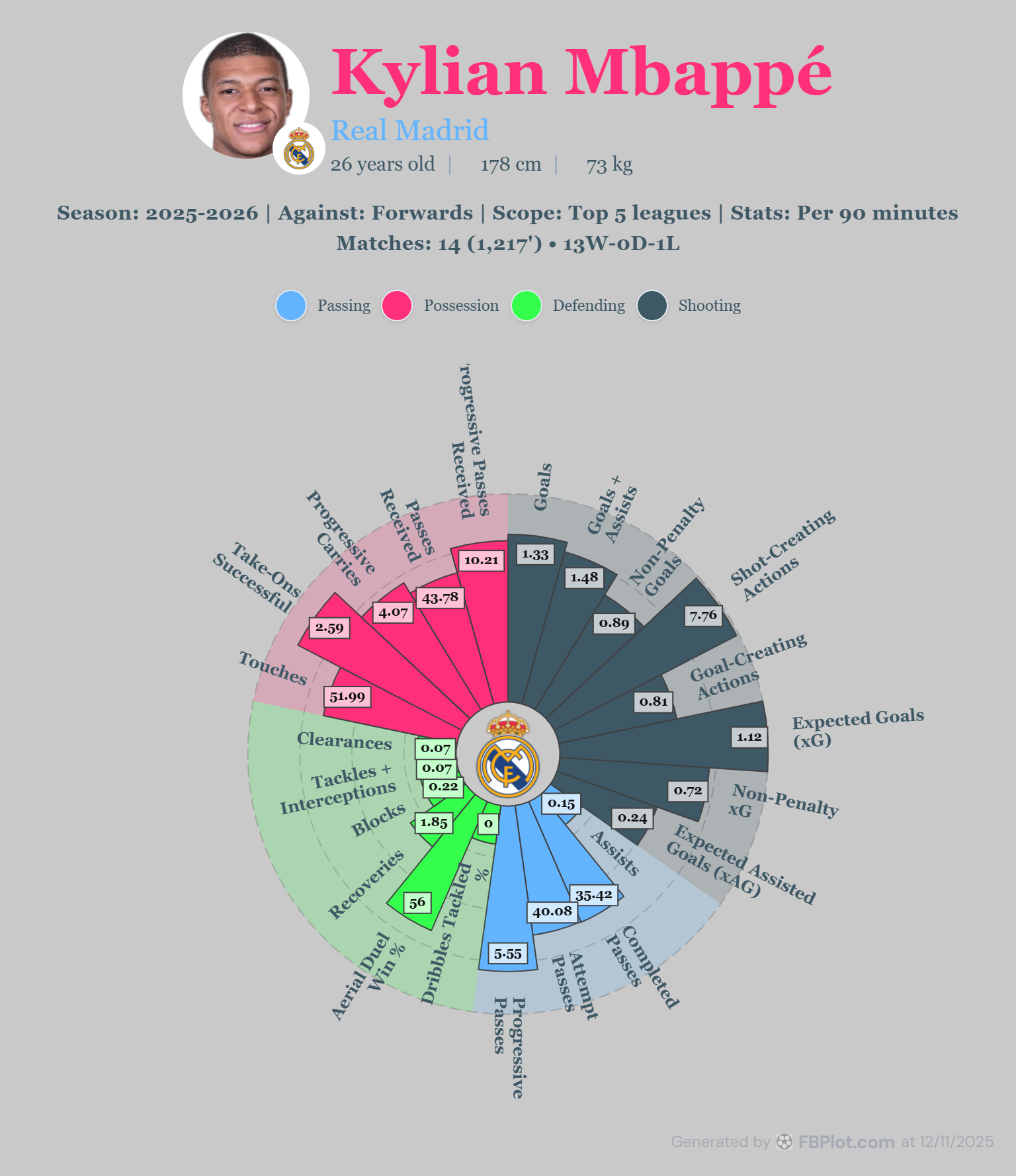
If you’re creating content for fantasy football audiences or social media, the Fantasy football palette is a perfect match. This palette has a vibrant, playful vibe reminiscent of fantasy league dashboards or video game graphics. In the example, Kylian Mbappé’s name appears in bright pink against a slate gray background, with Real Madrid in an aqua blue – these unconventional colors signal a fun, modern tone. The radar itself features neon green and magenta highlights among others, making each performance area stand out distinctly.
- When to use it: This palette excels in engaging a younger or online audience – think blog posts, Twitter/X infographics, or fantasy league articles where a flashy look can increase engagement. Sports media companies might use it for “player of the week” graphics or comparison charts in a fantasy context, because the high contrast ensures clarity even on a small phone screen.
- Pros: High-contrast neon colors on a neutral dark background offer great readability; the palette feels fresh and contemporary, aligning with esports or fantasy app aesthetics. It naturally draws the viewer’s attention on crowded social feeds.
- Cons: The flip side of its boldness is that it’s less suited for formal reports or traditional print media – a professional scouting dossier or a newspaper might find the hot pinks and bright greens out of place.
Additionally, if a chart needs to align with a specific team’s branding, Fantasy’s random bright colors could clash. Use this palette when you want to excite and engage, rather than to stay subtle.
Pastel Palette – Soft Tones for Reports and Editorials
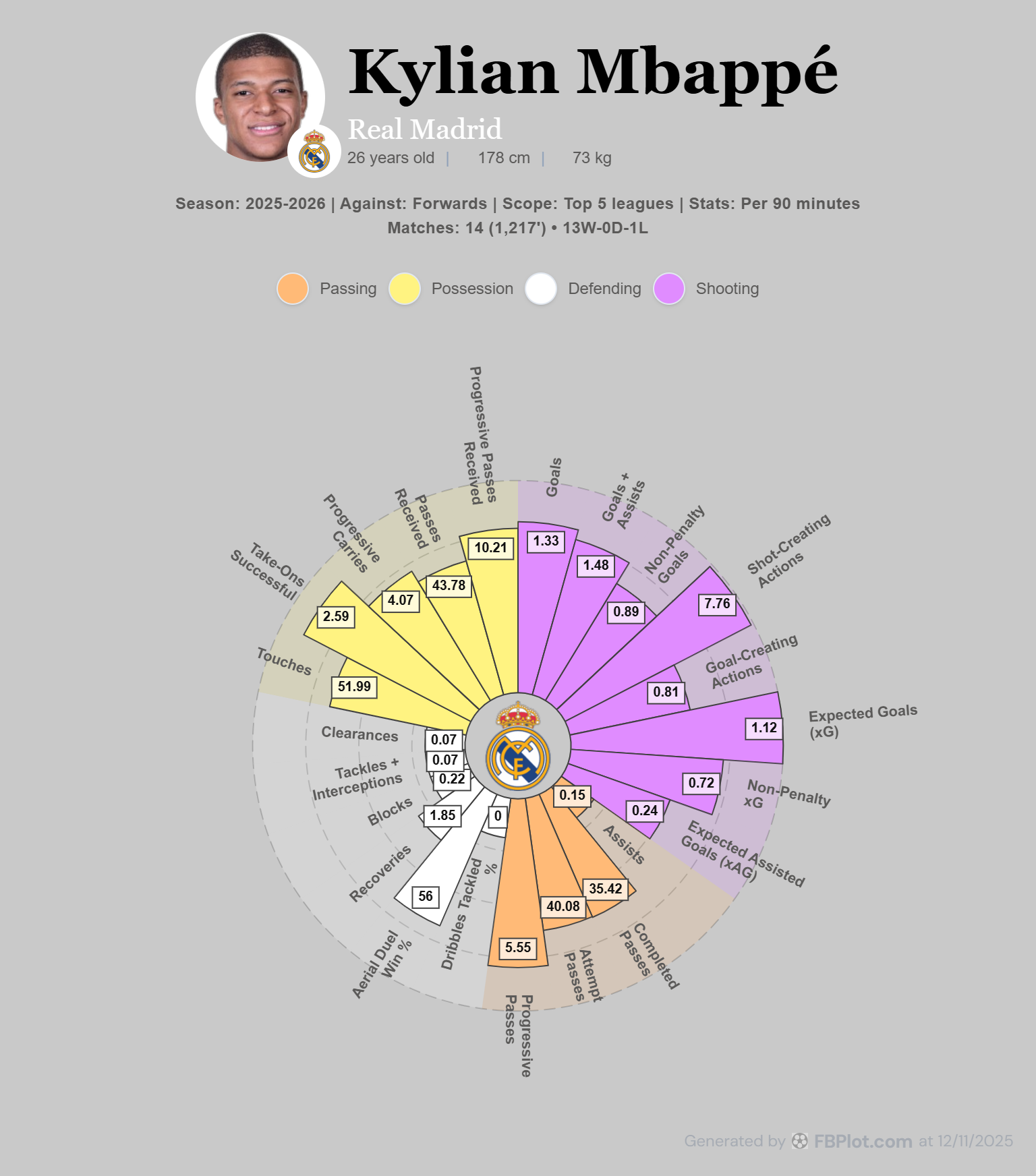
The Pastel palette offers a subtle, muted color scheme that’s easy on the eyes – excellent for lengthy reports, print publications, or any context where you want the data to speak without loud colors. In the example above, the chart is set against an understated gray background, and the colors used for the data segments are soft yellows and purples along with neutral tones. Nothing is oversaturated: Mbappé’s name is rendered in a standard black, and category labels appear in gentle hues (orange for Passing, pale yellow for Possession, light gray for Defending, and lavender for Shooting). This restrained approach ensures the chart blends with text on a page rather than screaming for attention.
- When to use it: The Pastel palette is a go-to for professional scouting reports, academic analyses, or newspaper graphics, where maintaining a consistent, unobtrusive style is important. If you’re inserting a radar chart into a document with lots of text or combining it with other charts, Pastel’s soft palette will maintain visual harmony.
- Pros: The lighter colors and neutral background can integrate well with print layouts and text-heavy reports. Colour accessibility still requires a contrast check; the preset name alone does not guarantee it.
- Cons: The main trade-off is that Pastel is not as immediately eye-catching as some other palettes. In a social media post or a presentation slide, its subtlety might fail to grab attention, especially from afar. Also, if your publication has a vibrant brand color, the pastel scheme might not incorporate it fully (though you can always tweak individual colors). Overall, Pastel is about restraint and clarity, making it ideal for serious analyses and dense information displays where style must not detract from substance.
Tibet Building Palette – Rich Earthy Tones for a Unique Aesthetic
The Tibet building palette is the most uniquely named of the lot, and it delivers a distinctive visual style. Drawing from a palette of earthy tones and deep reds (inspired by traditional Tibetan architecture colors), it gives your radar chart a warm, vintage character. In the example, the background is a soft sand-beige, easing the contrast on the eyes. Data segments and labels incorporate colors like dark maroon, burnt orange, and muted gold, with even a hint of teal blue on some elements – reminiscent of ornate temple designs or aged prints. This scheme can set your chart apart from the standard blues and reds seen elsewhere.
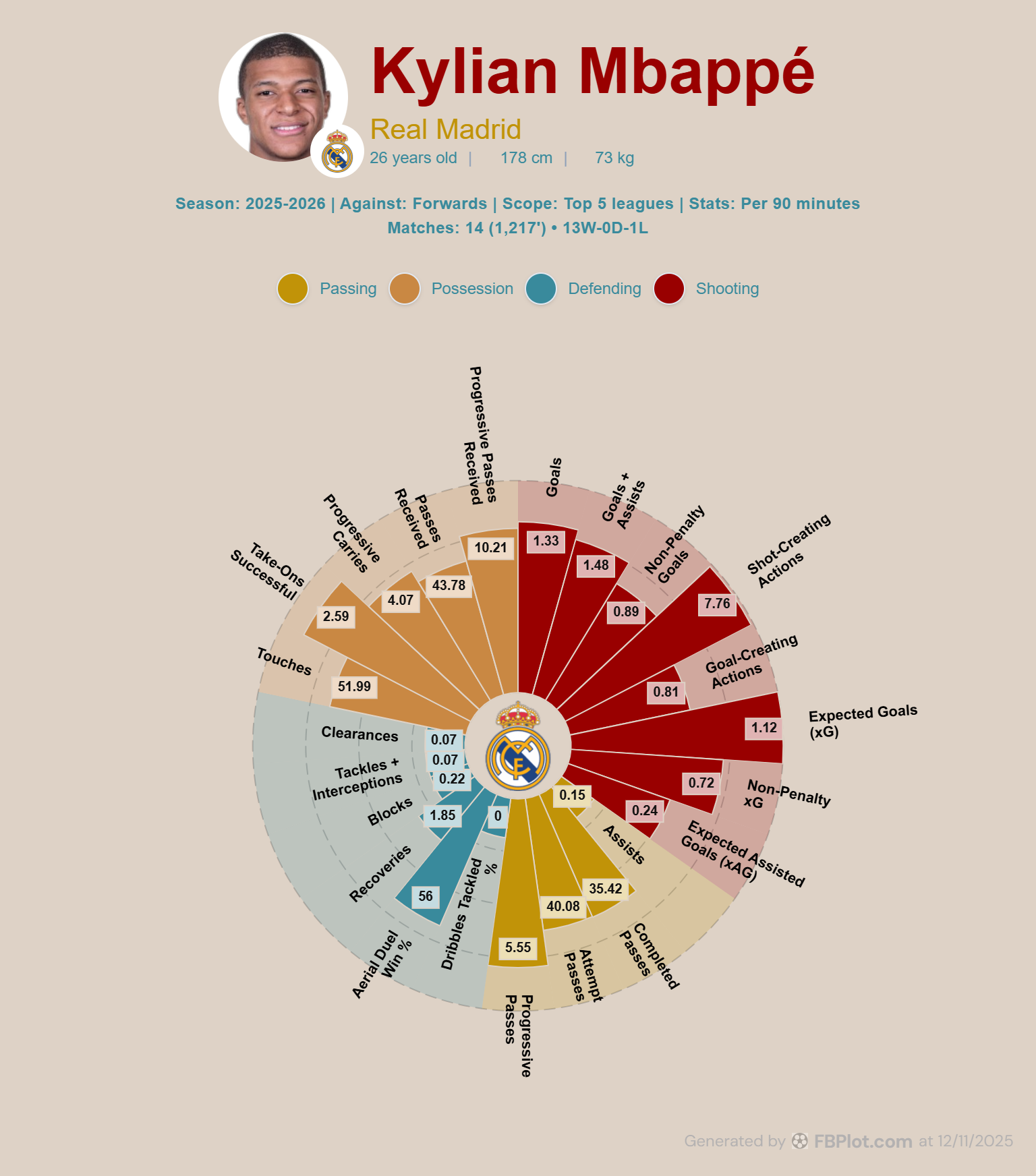
- When to use it: The Tibet building palette is great for when you want your visualization to have a bespoke, editorial look. For instance, a feature piece in a magazine or a blog post doing a historical comparison might employ these tones to create an atmospheric effect. Scouts or analysts could use it in reports where the aim is to appear refined and less “techy” – the colors have a somewhat classical appeal. It can also complement content that isn’t team-specific but needs to stand out (imagine a neutral presentation theme or a report cover).
- Pros: The palette’s subdued reds and browns are easy on print materials and lend a professional gravitas to the chart. The high contrast of the deep red against beige ensures important values still stand out, but in a way that feels deliberate and sophisticated. Moreover, because these colors are uncommon in sports graphics, a radar chart in Tibet palette can be quite memorable.
- Cons: While unique, the palette might not match any team’s branding (unless a team coincidentally has a claret and gold scheme). If brand alignment is a priority, Tibet might require manual tweaking. Also, on digital platforms that favor brighter visuals, these tones could appear a bit retro or understated.
In summary, use Tibet building when you want a rich, editorial tone or to give your charts a touch of old-world charm, and you don’t mind stealing the show with an uncommon color set.
Spain – Balanced and Multi-Color for General Use
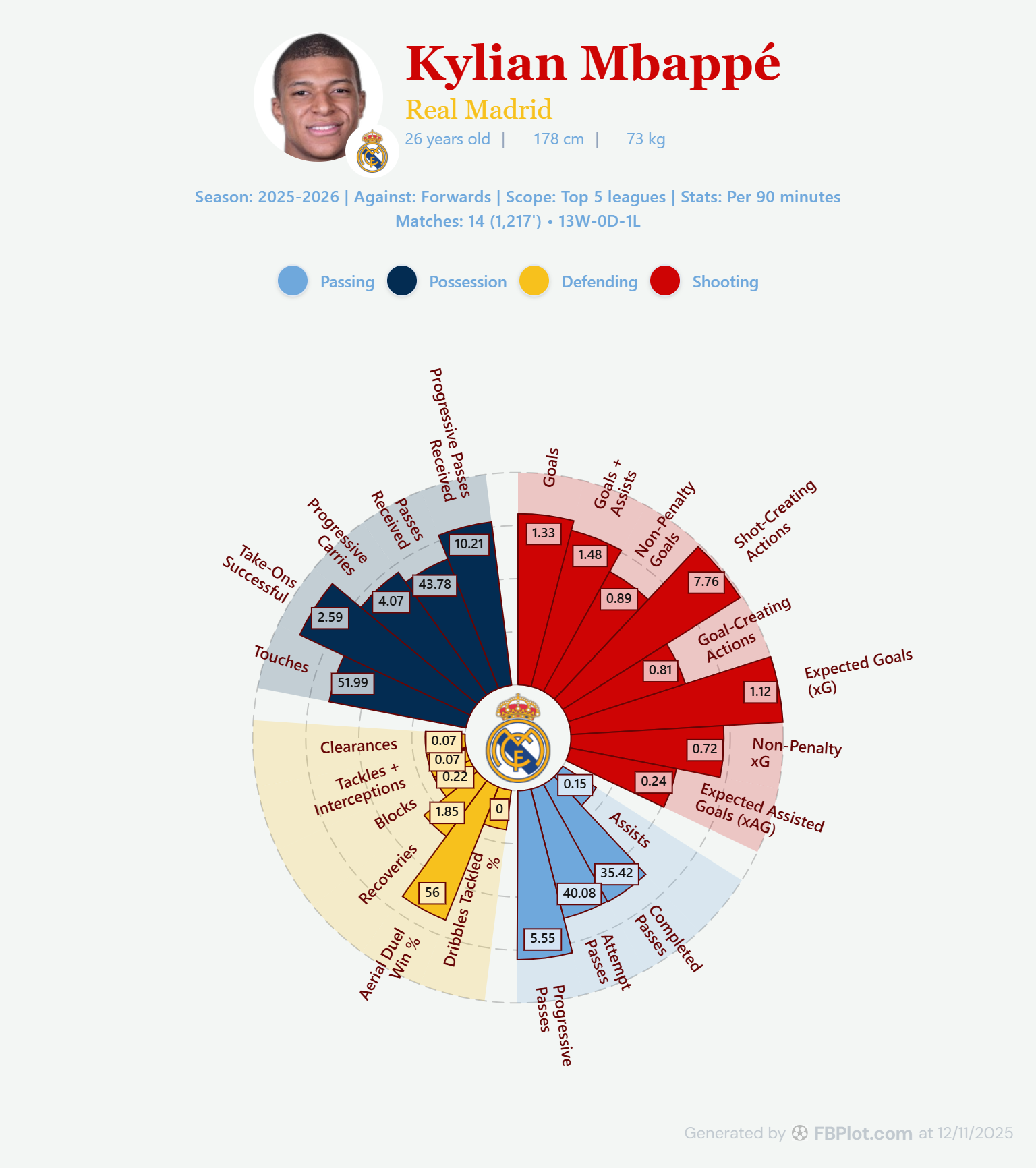
Simply named “Spain,” this default option is an all-purpose design that many users start with. It provides a balanced variety of colors so that each section of the radar chart is distinct, which is especially useful if you plan to discuss each aspect of performance separately. In the example, the four main metric groups are color-coded in a familiar way – for instance, Passing stats are light blue, Possession stats a darker blue, Defending stats golden yellow, and Shooting stats red. The background is plain white (or very light gray), and text is in appropriate contrasting colors (Mbappé’s name appears in bright red here, complementing the theme). This palette doesn’t align to any team specifically, but that’s its strength: it’s versatile and clear.
- When to use it: The Palette preset is ideal for general-purpose charts where you want maximum clarity and a professional look without leaning toward any team’s colors. It works well for presentations to mixed audiences, generic blog posts, or comparison charts involving players from different teams (since the colors won’t make the chart feel biased toward one side). If you’re unsure which palette fits, this one is usually a safe starting point.
- Pros: Highly readable and printer-friendly – the white background and varied colors ensure that both color and shape differences are easy to spot. Because each statistic category has its own color, it’s straightforward to create a narrative (e.g., “blue sections show Passing ability, where the player excels, whereas red sections (Shooting) are smaller”). The palette feels professional and neutral.
- Cons: Visually, it may not be as striking as some theme-based palettes; it has a somewhat standard infographic look. If your goal is to evoke a certain team or competition, you’d switch to a more thematic palette. However, there are few drawbacks in contexts of pure clarity.
In short, the default Palette is the “jack-of-all-trades” – great for benchmarking, comparisons, or any scenario where a clean, multi-color chart is desired.
Real Madrid Palette – Clean and Classic for Team Branding
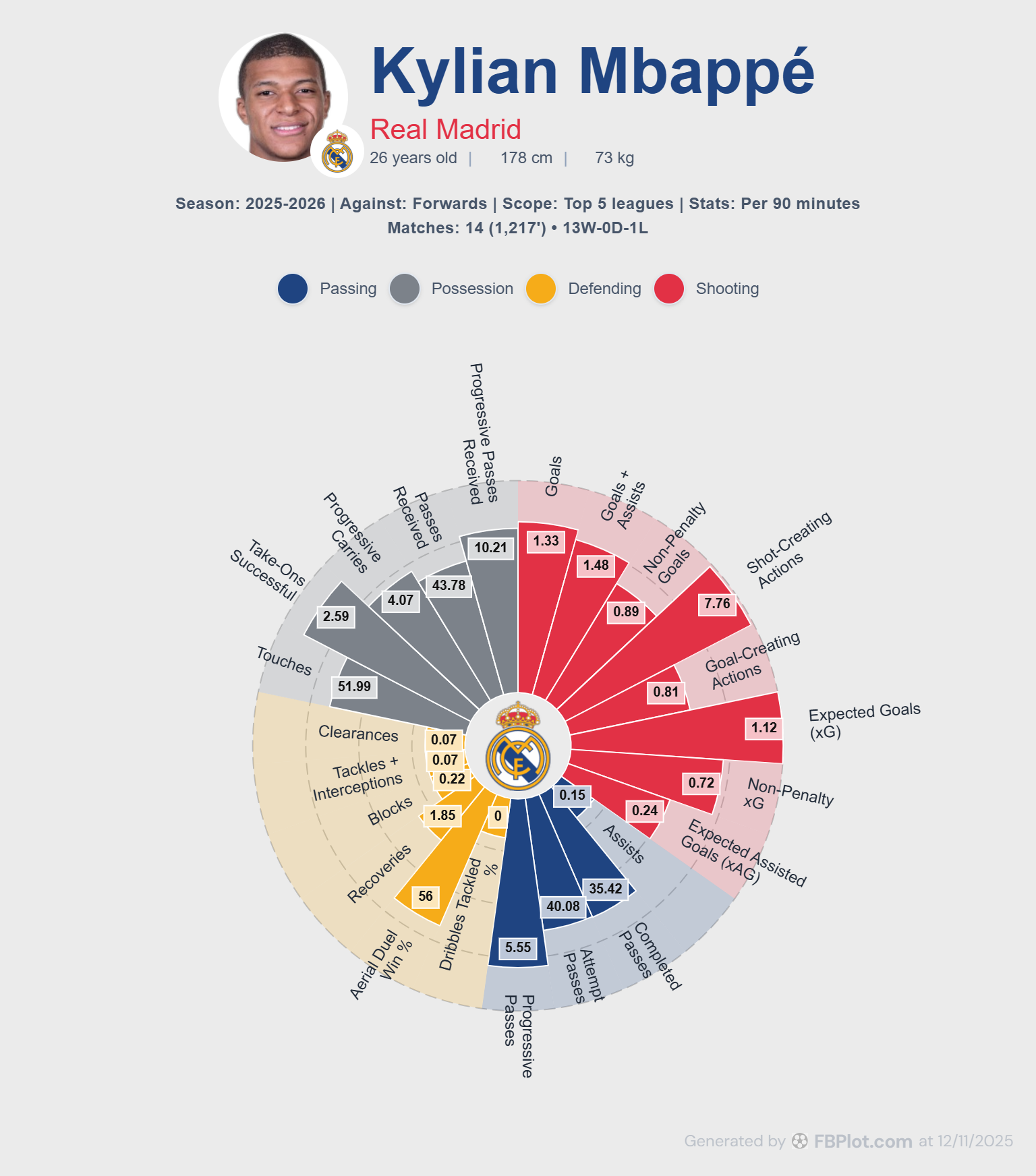
The Real Madrid palette is designed to mirror the iconic look associated with the club often nicknamed Los Blancos. As shown above, the background is nearly white (a pale gray, to allow white elements to show), giving the chart a clean, minimalistic canvas. Key text like “Kylian Mbappé” is in a deep Madrid blue, and we see the use of red and yellow accents that likely derive from details of Real’s crest (for example, the small red segment might reflect the crest’s crown cross, and the golden tone reflects the crown or trim). The chart’s defending segments here are gray, and passing segments navy blue – overall it’s a restrained color palette befitting a top club’s branding.
- When to use it: This one is a natural if you are featuring a Real Madrid player or comparing Real players – it instantly gives the graphic a Real-specific feel. Scouting departments at Real Madrid (or media covering the club) would use this to ensure any visual fits seamlessly with Real’s brand presentation. Even if the content isn’t officially for the club, using their palette in a graphic about them adds credibility and visual context for the reader. Outside of Real, this palette is useful whenever you want a crisp, professional look with light colors – it could pass as a generic “modern report” style if viewers don’t specifically associate the colors with Real.
- Pros: It’s very easy on the eyes – mostly light background and moderate accent colors – and it maintains high readability. The touch of team color adds character without needing garish background colors. This palette also prints well due to the white/gray background and limited saturated areas.
- Cons: It’s obviously tailored to Real Madrid, so using it for, say, an FC Barcelona player might be confusing or off-brand (you wouldn’t want to surround a Barça player’s stats with Real’s colors!). In those cases you’d choose a different palette or customize one.
Additionally, the subdued style, while elegant, might not grab a casual reader’s attention as much as a bold palette would. In summary, the Real Madrid palette offers a sleek, branded look – perfect for content centered on Real or whenever you need a trustworthy, boardroom-ready aesthetic.
FBC Palette – A Neutral Historical Preset
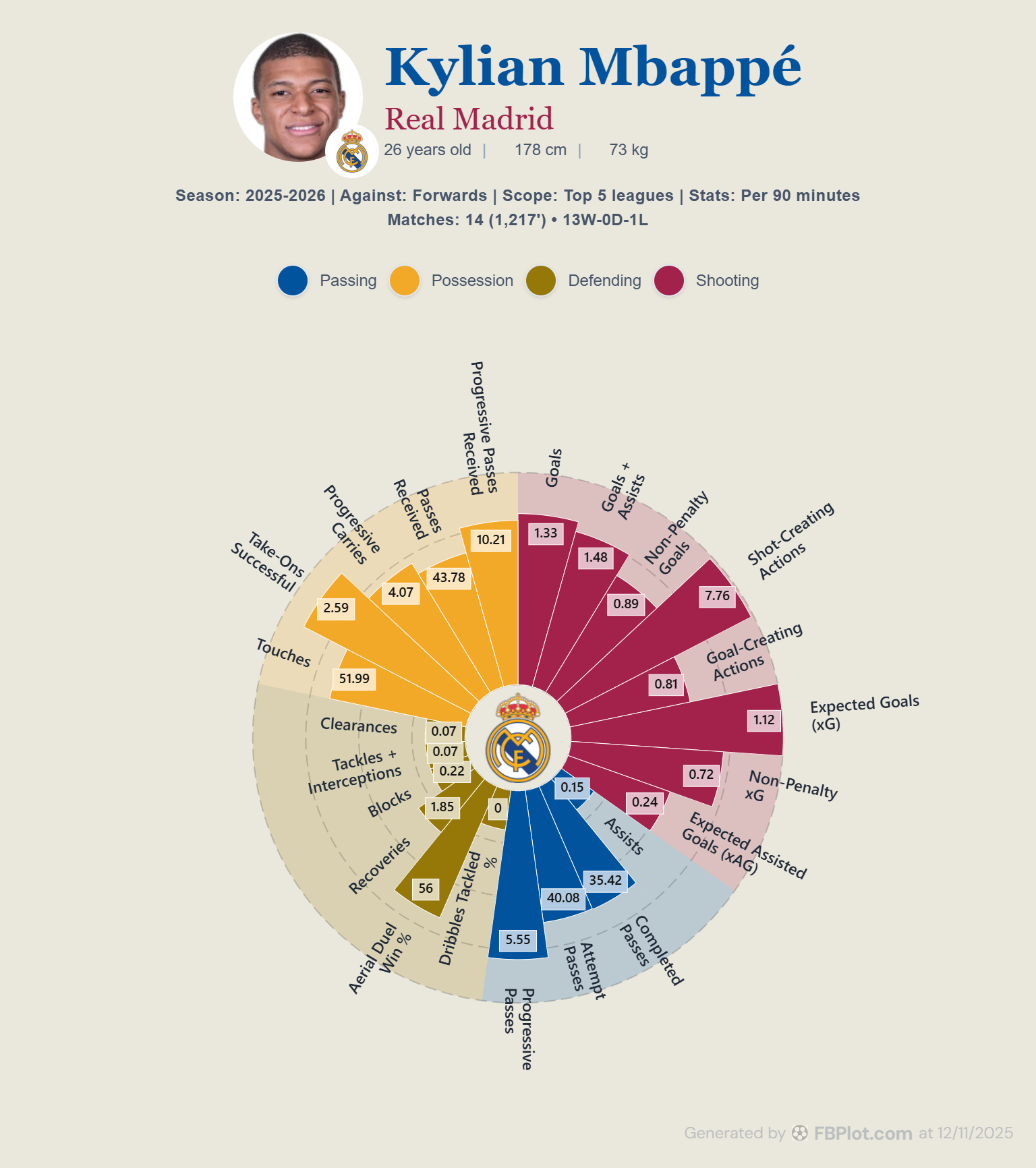
Finally, the capture labels this palette “FBC”; the repository does not document the meaning of the abbreviation. The chart uses a subtle warm background and a combination of blue, red, orange and gold hues. The title text is deep blue, while “Real Madrid” is red. The data segments use orange for possession, ochre for defending, blue for passing and plum for shooting.
- When to use it: This palette is an excellent default for general football analytics content. If you’re making a chart and aren’t specifically tailoring it to a team, the FBC palette gives a polished, broadcast-ready look. Press agencies or scouting agencies might choose FBC for reports that cover multiple teams or league-wide analysis, where a neutral yet appealing style is preferred. It’s also a great starting point if you plan to customize – because it has a bit of everything (light background, medium-strong accents), you can easily adjust one or two colors to match a brand and still have a coherent scheme.
- Pros: Versatility is the keyword – the FBC palette’s mix of colors works against light or dark contexts and is friendly to most club color schemes if placed side by side. It delivers contrast (notice how clearly the radar’s values are readable) without using extremely neon or dark elements. This makes it suitable for both digital and print uses.
- Cons: Since it’s a general palette, it might not be as memorable or thematic as some others – it won’t automatically tie your chart to a specific team or story. Also, if your publication already has a strong color identity, you might opt to tweak the FBC colors to align more closely. That said, it’s easier to tweak this palette than to start from scratch, which speaks to its flexibility.
Overall, FBC serves as a reliable, professional-looking default – a palette you can trust for almost any project when you want a dash of color that still feels cohesive.
Bringing It All Together
The design palette you choose can profoundly affect how your audience perceives a radar chart. High-contrast schemes can inject energy and grab attention, whereas subtle palettes can give more room to labels and surrounding text. There is no single best palette: the choice depends on audience, medium, brand and accessibility requirements.
Use these exports as historical design references, then verify the presets offered by the current editor. To build the analysis first, follow the football radar chart guide; when the metrics and peer group are sound, open the Pizza chart creator and choose a visual treatment that preserves contrast and legibility.
Found this helpful? Share it with your network
More Articles
How to Document a Reproducible Football Chart
Record the minimum information another analyst needs to rebuild a football chart: question, source, period, population, metrics, units and configuration.
Small Samples in Football Analytics: Minutes, Matches and Uncertainty
Handle early-season and low-minute football data with explicit exposure rules, sensitivity checks and cautious language.